
Microsoft speech provider
A Microsoft speech provider lets Live Hub use your Azure AI Speech subscription for speech-to-text (STT), text-to-speech (TTS), or both.
Microsoft's advanced configuration parameters are set on a bot connection rather than on the provider, and apply to recognition only. See Configure advanced parameters at the bot connection level.
Add a Microsoft speech provider
To add a Microsoft speech provider:
-
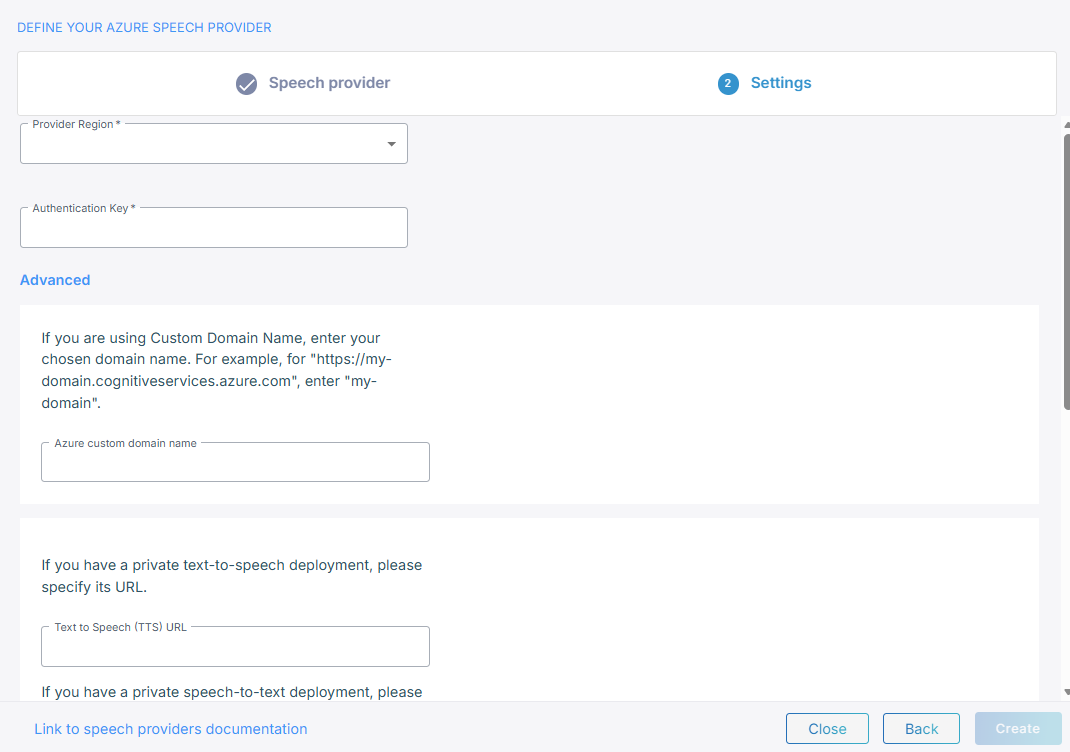
From the 'Provider Region' drop-down list, select the region your Speech resource is in. An Azure key is valid for one region only.
-
In the 'Authentication Key' field, enter the subscription key from that Speech resource.
-
Optional: Under Advanced, in the 'Azure custom domain name' field, enter the name on its own, not the whole address. For
https://my-domain.cognitiveservices.azure.com, entermy-domain.Leave it empty unless you have restricted the Speech resource to selected networks or a private endpoint. Azure accepts a custom subdomain only in that case.
-
Optional: If you run private deployments, enter their addresses in the 'Text to Speech (TTS) URL' and 'Speech to Text (STT) URL' fields. Left empty, they fall back to Azure's public endpoints.
-
If your deployment presents a self-signed certificate, under Self-signed certificate, set 'Allow self-signed certificate for STT' and 'Allow self-signed certificate for TTS' to Enabled.
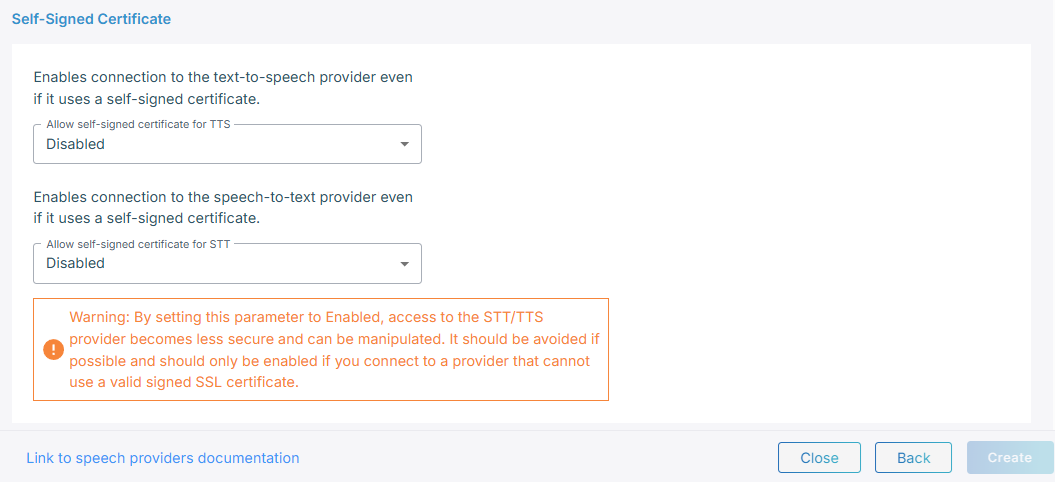
Enabling this makes the connection to the provider less secure and open to manipulation. Use it only where the provider cannot present a properly signed certificate.
-
Click Create.
Configure advanced parameters at the bot connection level
Recognition parameters go under sttPassthruConfig in the JSON editor on the bot
connection's Advanced tab. See
Manage bot connections.
Each parameter is named inside setServiceProperty, with the value Azure should carry.
The following example caps how long a single recognized segment can run:
{
    "sttPassthruConfig": {
        "setServiceProperty": {
            "segmentationMaximumTimeMs": {
                "value": "20000"
            }
        }
    }
}
Give the value as a string, whatever its type. Azure carries it as a URI query
parameter, which you can state explicitly by adding "channel": "UriQueryParameter"
alongside the value.
The names are the Azure Speech SDK's own. The full set is in QueryParameterNames.ts.
Language and voice
You select the language and the voice per bot connection, on its Settings tab, not on the provider. See Manage bot connections.